Blog

  • New Feature: Find Your Orphaned Content in Seconds

    New Feature: Find Your Orphaned Content in Seconds

    We’re excited to announce a powerful new addition to Hive Autolinker that will help you identify content optimization opportunities you might be missing.

    What’s New

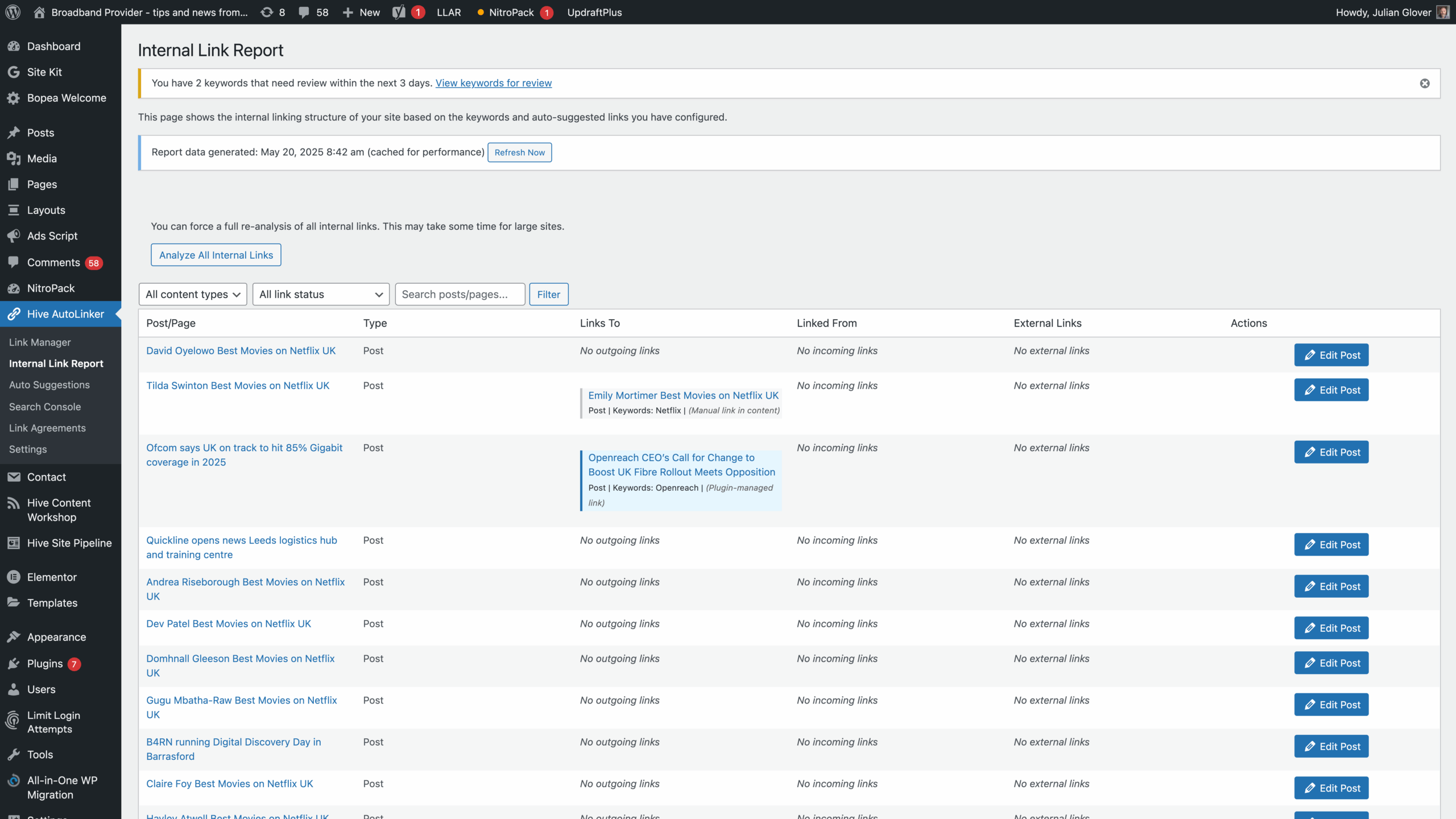
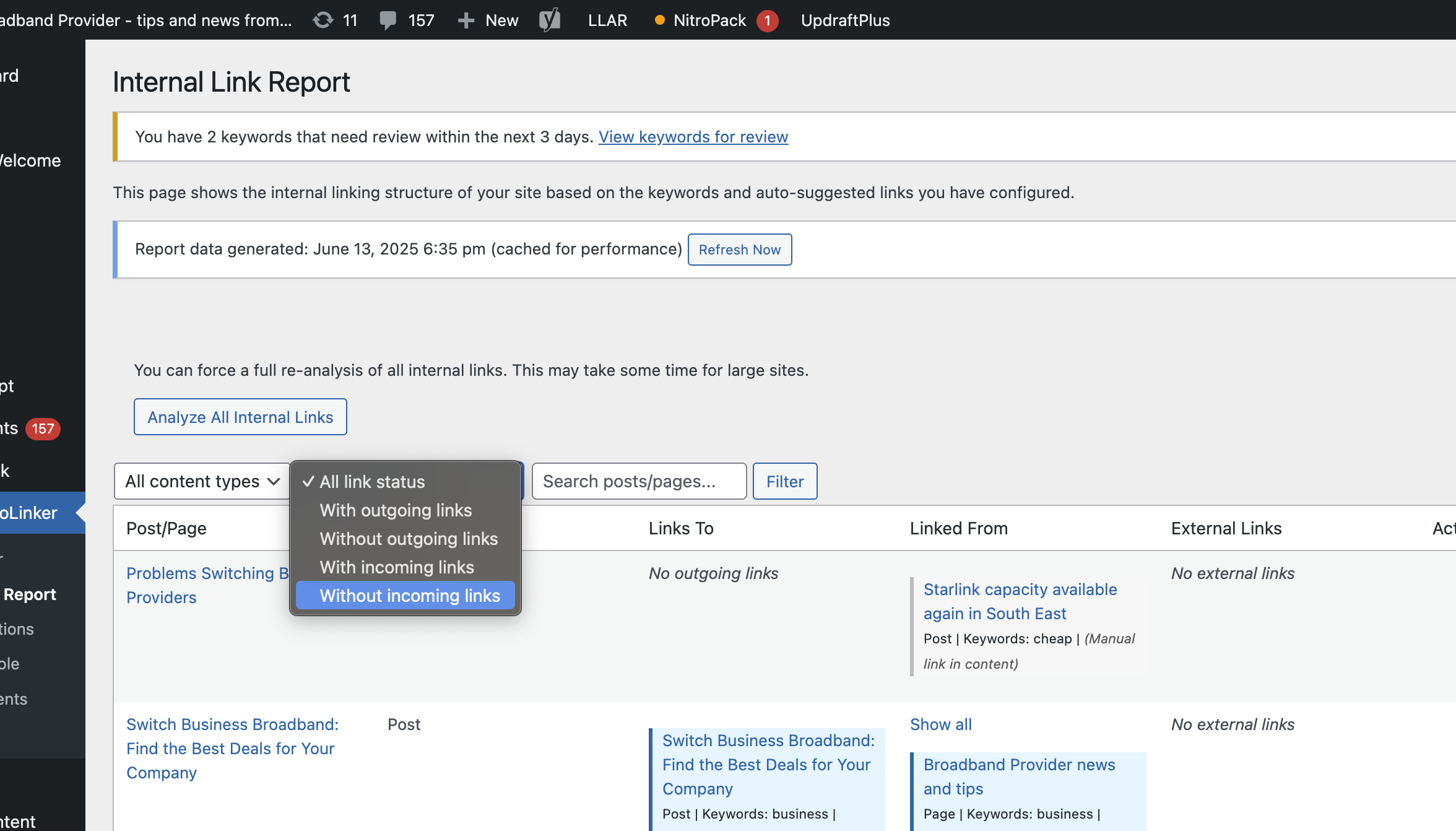
    You can now filter your internal link report to show only posts and pages that currently have zero internal links pointing to them. This means you can instantly spot your “orphaned” content that’s not getting the internal link love it deserves.

    Why This Matters

    Internal links are crucial for SEO and user experience, but it’s easy to accidentally leave valuable content without any internal links pointing to it. These orphaned pages often:

    • Miss out on link equity distribution
    • Get less organic traffic than they could
    • Are harder for users to discover
    • May not rank as well as they should

    How It Works

    Simply head to your internal link report and use the new filter option to view only content with zero incoming internal links. You’ll get a clean, focused view of exactly which posts and pages need attention.

    What You Can Do Next

    Once you’ve identified your orphaned content, you can:

    • Find relevant existing content to link from
    • Add contextual internal links to boost page authority
    • Improve your site’s overall link architecture
    • Help users discover more of your valuable content

    This feature is available now for all Hive Autolinker users. Log in to your dashboard and start optimizing your internal link strategy today!


    Have questions about this new feature? Reach out to our support team – we’re here to help you make the most of your internal linking strategy.

  • Why Your Internal Links Are Your Marketing Secret Weapon (And How Most Brands Get Them Wrong)

    Why Your Internal Links Are Your Marketing Secret Weapon (And How Most Brands Get Them Wrong)

    Most marketers obsess over getting external backlinks while completely ignoring the goldmine sitting right under their noses: internal links. If you’re not strategically thinking about how your content connects to itself, you’re leaving serious marketing value on the table.

    What Internal Links Actually Do for Your Marketing

    Internal links aren’t just navigation tools—they’re powerful marketing instruments that work 24/7 to improve your results. Here’s what they’re actually doing behind the scenes:

    They guide your audience through your marketing funnel. Every internal link is an opportunity to move someone from awareness to consideration to decision. Link from that educational blog post to your product comparison page. Connect your case study to your pricing information. You’re literally architecting the customer journey.

    They amplify your SEO efforts exponentially. Search engines follow internal links to understand your site’s structure and determine which pages matter most. When you strategically link to your money pages (product pages, service offerings, lead magnets), you’re telling Google “this content is important.” The math is simple: more strategic internal links to key pages equals higher rankings potential.

    They increase time on site and reduce bounce rates. Marketing isn’t just about getting people to your site—it’s about keeping them engaged. Smart internal linking creates a web of related content that encourages deeper exploration. Someone reading about “email marketing tips” might click through to your “email automation guide,” then to your “email templates,” and finally to your email marketing service.

    They distribute authority throughout your domain. Think of link authority like water flowing through pipes. External backlinks pour authority into specific pages, and internal links distribute that authority throughout your site. This means your high-performing content can lift up your newer or less-linked pages.

    The Hidden Costs of Poor Internal Linking

    Most websites link randomly or not at all, and it’s costing them dearly:

    Lost conversion opportunities. Every piece of content should have a clear next step, whether that’s downloading a lead magnet, viewing a product, or contacting your team. Without strategic internal links, visitors consume your content and leave without taking action.

    Wasted content investment. You’ve spent time and money creating valuable content, but if it’s not properly linked, it might as well be invisible. Great content that’s not discoverable through internal links often gets zero organic traffic and provides zero marketing value.

    Confused user experience. When visitors can’t easily find related information, they get frustrated and leave. Poor internal linking creates dead ends instead of pathways to engagement.

    Missed SEO potential. Pages without adequate internal links struggle to rank, no matter how good the content is. You could have the best resource on your topic, but without internal link support, it may never reach its ranking potential.

    How to Think About Internal Links Strategically

    The best marketers approach internal linking like they approach any other marketing channel: with intention, measurement, and optimization.

    Start with your business goals. What actions do you want visitors to take? Map out your ideal customer journey, then use internal links to guide people along that path. Your link strategy should support your conversion strategy.

    Create content clusters around your key topics. Group related content together and link extensively within each cluster. This creates topical authority and makes it easy for visitors to dive deep into subjects they care about. If you sell project management software, create clusters around “productivity tips,” “team collaboration,” and “project planning.”

    Prioritize your most important pages. Not all pages are created equal. Your product pages, service offerings, and key lead magnets should receive more internal links than your random blog posts. Create a hierarchy and link accordingly.

    Use descriptive anchor text. Instead of “click here” or “read more,” use anchor text that describes what visitors will find. This helps both users and search engines understand the context and value of the linked page.

    Link early and often within content. Don’t wait until the end of your articles to add internal links. Weave them naturally throughout your content when they add value to the reader’s experience.

    Making Internal Links Work Harder for Your Marketing

    Transform your internal linking from an afterthought into a marketing powerhouse:

    Create content upgrade pathways. Link from beginner content to intermediate and advanced content. This keeps visitors engaged longer and positions you as a comprehensive resource.

    Build bridges between different content types. Connect blog posts to case studies, guides to webinars, and educational content to product information. These bridges help move people through different stages of awareness.

    Use internal links to support campaign goals. Launching a new product? Make sure relevant existing content links to the new product page. Running a promotion? Update your most popular posts with links to the promotional landing page.

    Leverage your top-performing content. Your most popular pages have the most link authority to share. Regularly audit your top performers and ensure they’re linking to your most important pages.

    The Maintenance That Makes the Difference

    Internal linking isn’t a set-it-and-forget-it task. The most successful marketers treat it as an ongoing optimization opportunity:

    Regular content audits help you identify orphaned content (pages with no internal links pointing to them) and over-linked pages that might be diluting their effectiveness.

    Link opportunity analysis involves reviewing new content for linking opportunities and updating existing content to link to new resources.

    Performance tracking means monitoring which internal links drive the most traffic and conversions, then replicating those successful patterns.

    The bottom line: internal links are one of the few marketing tactics that improve SEO, user experience, and conversion rates simultaneously. While your competitors focus solely on external link building, you can gain a significant advantage by mastering the links you completely control.

    Your internal linking strategy should be as intentional as your content strategy, social media strategy, or any other marketing channel. The brands that understand this win more traffic, engage visitors longer, and convert at higher rates.

    Start auditing your internal links today. Your future marketing self will thank you.
  • Free Site Search Bookmarklet: Instantly Search Any Website with Google

    Free Site Search Bookmarklet: Instantly Search Any Website with Google

    This one little bookmarklet gets used every day in my world

    Ever wished you could quickly search within a specific website without navigating to their search function? Or maybe you want to see what pages from your own site are indexed in Google? We’ve got the perfect solution for you.

    What This Bookmarklet Does

    Our Site Search bookmarklet is a simple one-click tool that:

    • Performs instant site-specific searches on any website you’re currently browsing
    • Shows you indexed pages from Google for any domain
    • Finds specific content within any site using Google’s powerful search capabilities
    • Saves time by eliminating the need to manually type “site:” searches

    Perfect for SEO professionals, content creators, researchers, and anyone who frequently searches within specific websites.

    How It Works

    When you click the bookmarklet while on any website, it:

    1. Automatically detects the current domain you’re browsing
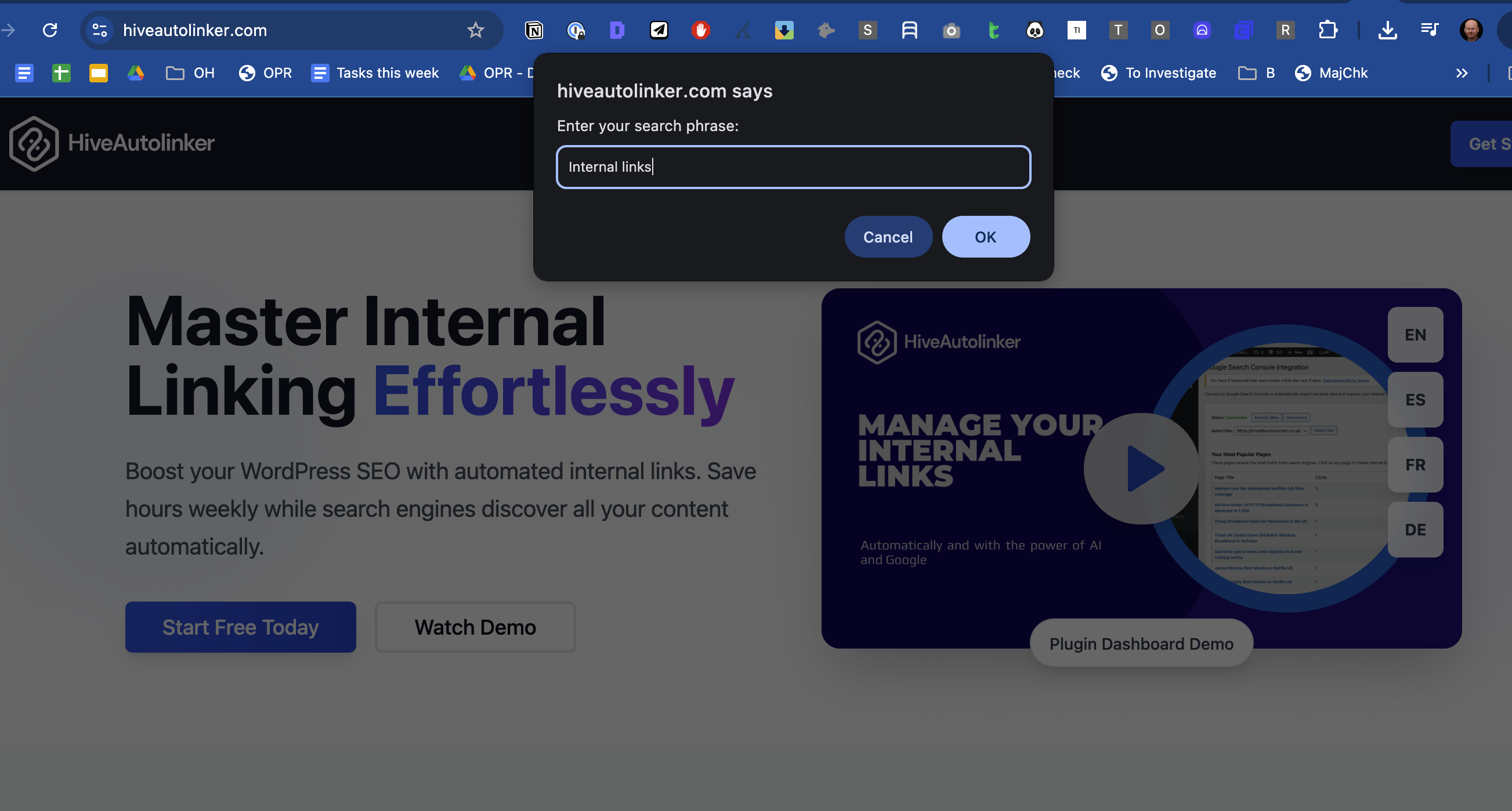
    2. Prompts you to enter your search terms
    3. Opens a new tab with a Google search using the format: site:domain.com your search terms

    Installation Instructions

    Method 1: Drag and Drop (Easiest)

    1. Show your bookmarks bar if it’s not visible:
      • Chrome/Edge: Press Ctrl+Shift+B (Windows) or Cmd+Shift+B (Mac)
      • Firefox: Press Ctrl+Shift+B (Windows) or Cmd+Shift+B (Mac)
      • Safari: Go to View > Show Favorites Bar
    2. Drag this link to your bookmarks bar: [Site Search](javascript:(function(){var domain=window.location.hostname;var query=prompt(“Enter your search phrase:”);if(query!==null){window.open(‘https://www.google.com/search?q=site:’+encodeURIComponent(domain)+’ ‘+encodeURIComponent(query));}})();)

    Method 2: Manual Creation

    If the drag-and-drop method doesn’t work, follow these steps:

    1. Right-click your bookmarks bar and select “Add page” or “New bookmark”
    2. Fill in the bookmark details:
      • Name: Site Search (or whatever you prefer)
      • URL: Copy and paste this entire code:
      javascript:(function(){var domain=window.location.hostname;var query=prompt("Enter your search phrase:");if(query!==null){window.open('https://www.google.com/search?q=site:'+encodeURIComponent(domain)+' '+encodeURIComponent(query));}})();
    3. Save the bookmark

    Method 3: Import via Bookmark Manager

    1. Open your browser’s bookmark manager:
      • Chrome: Menu > Bookmarks > Bookmark manager
      • Firefox: Menu > Library > Bookmarks > Manage bookmarks
      • Safari: Bookmarks > Edit Bookmarks
    2. Create a new bookmark with the details from Method 2

    How to Use the Bookmarklet

    1. Navigate to any website you want to search
    2. Click the “Site Search” bookmark in your bookmarks bar
    3. Enter your search terms in the popup dialog
    4. Hit OK and watch as a new tab opens with your site-specific Google search results

    Practical Use Cases

    For Website Owners & SEO Professionals

    • Check indexation: See which of your pages Google has indexed
    • Monitor keyword presence: Find pages that mention specific keywords
    • Competitive analysis: Quickly search competitor sites for specific topics
    • Content audits: Locate pages with outdated information or specific terms

    For Researchers & Content Creators

    • Deep dive research: Find specific information within authoritative sites
    • Fact checking: Quickly search news sites or official sources
    • Content inspiration: See how other sites cover similar topics

    For General Users

    • Shopping: Find specific products on e-commerce sites
    • Troubleshooting: Search support sites for specific error messages
    • Academic research: Search specific educational institutions or journals

    Why This Beats Regular Site Search

    Many websites have poor internal search functions, but Google has likely indexed their content comprehensively. This bookmarklet leverages Google’s superior search capabilities while limiting results to your target site.

    Benefits over built-in site search:

    • More comprehensive results
    • Better search algorithm
    • Finds content even if the site’s search is broken
    • Works on every website, even those without search functions

    Pro Tips

    • Leave the search blank and just hit OK to see all indexed pages from the current domain
    • Use specific keywords to find exactly what you’re looking for
    • Combine with Google search operators like quotes for exact phrases
    • Works great for finding contact pages: Search for “contact” or “about”

    Troubleshooting

    Bookmarklet not working?

    • Make sure you copied the entire JavaScript code
    • Try creating the bookmark manually instead of dragging
    • Check that JavaScript is enabled in your browser

    No search dialog appearing?

    • Your browser might be blocking popups – check your popup settings
    • Try clicking the bookmarklet again

    Technical Details

    This bookmarklet uses vanilla JavaScript and:

    • Automatically detects the current domain using window.location.hostname
    • Properly encodes search terms to handle special characters
    • Opens results in a new tab so you don’t lose your place

    The code is lightweight, secure, and works across all modern browsers.


    Ready to supercharge your site searches? Install the bookmarklet now and experience the power of instant, Google-powered site search on any website you visit!

    Found this useful? Share it with your fellow researchers, SEO professionals, and productivity enthusiasts!